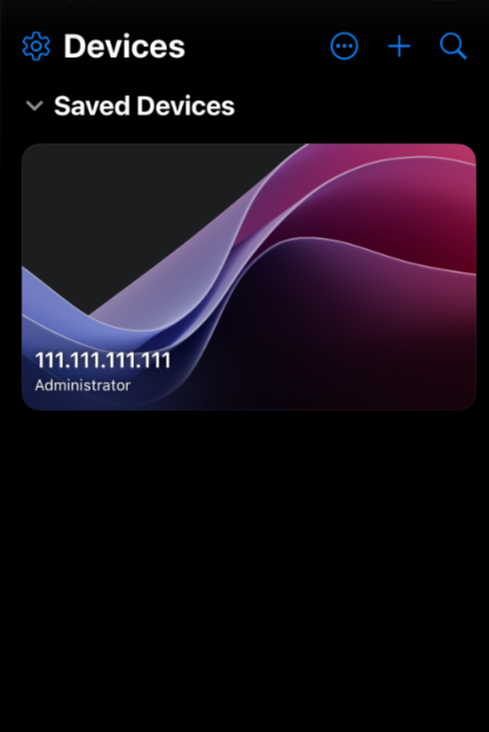
There are many ways to remote connect to your ChartVPS server/VPS, and you can do so from nearly any device, be it desktop, laptop, tablet, smartphone, or anything in-between. Our recommended, tried-and-tested, and free method is via Microsoft’s Windows app. It’s available for every major operating system, including Windows, Mac OS, iOS, and Android.
Tip
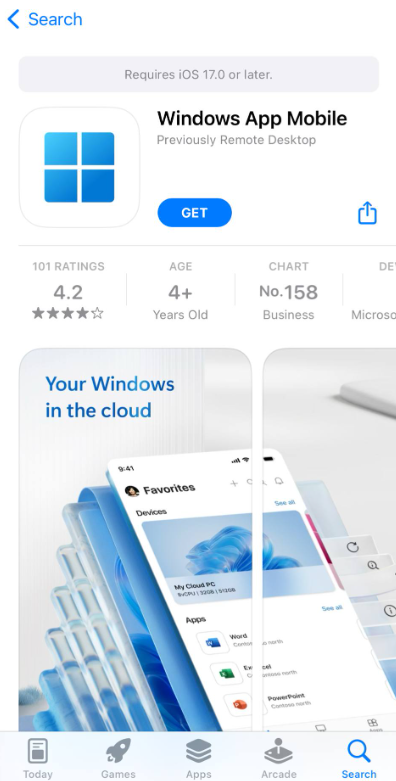
1Download the Windows app from the App Store
The Remote Desktop client for iOS/iPad isn’t available for download anymore and it’s replaced by Windows App Mobile.
Note
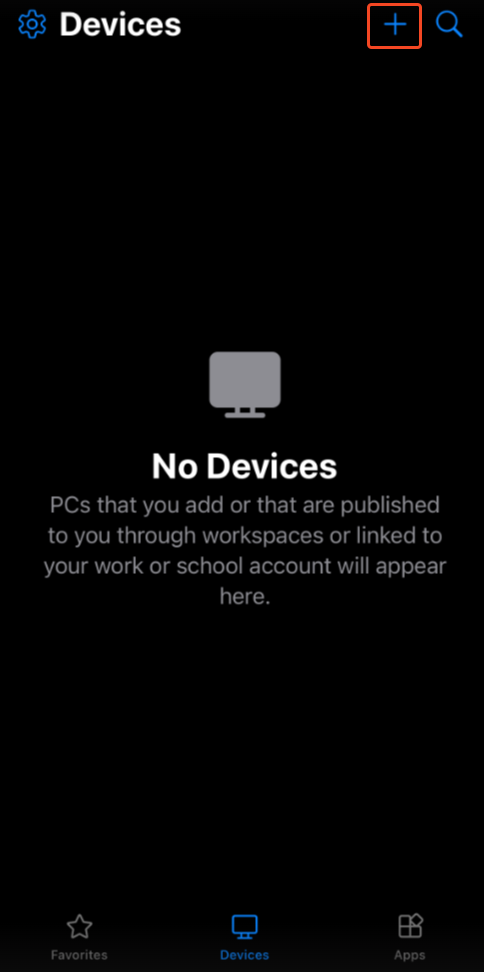
2Launch the app, then tap the + in the top-right corner and select Add PC
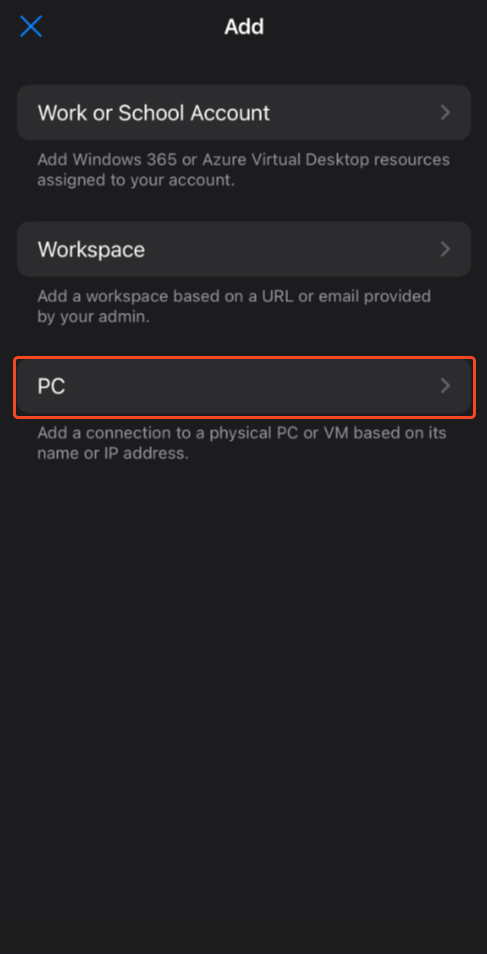
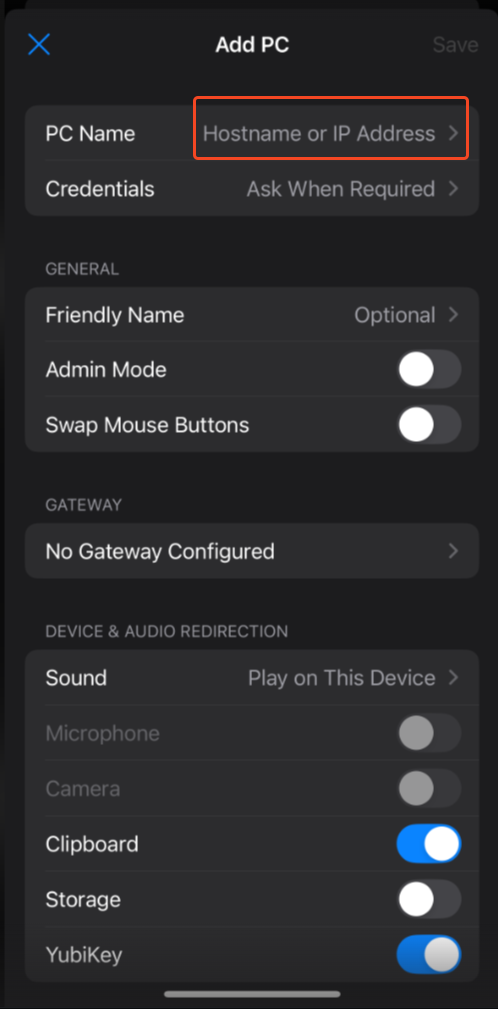
3This is the main configuration screen. We will make use of, both PC Name , and Credentials , fields, so start by tapping on PC Name
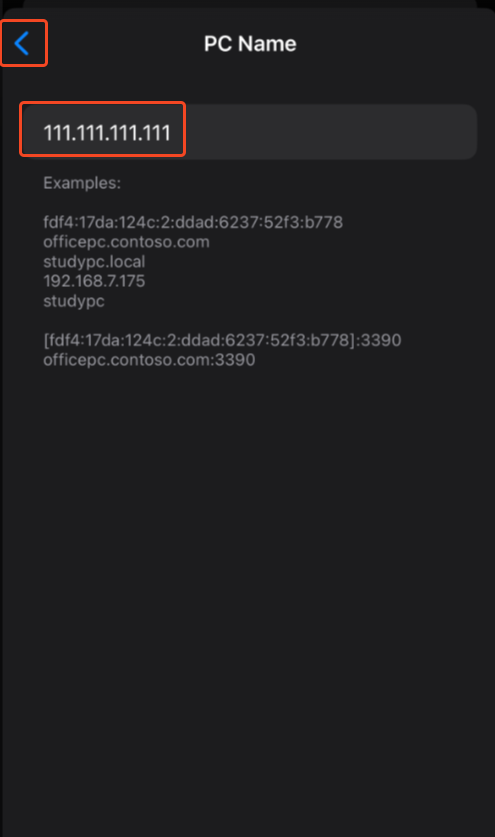
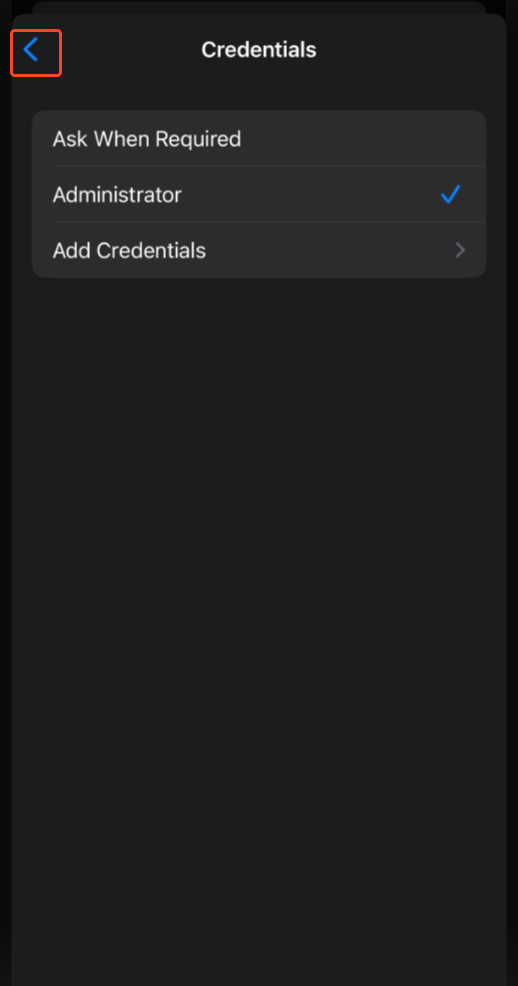
4Enter the IP Address that was sent to you via email shortly after you signed up with ChartVPS, then tap on the “<” icon to go back to the main configuration screen
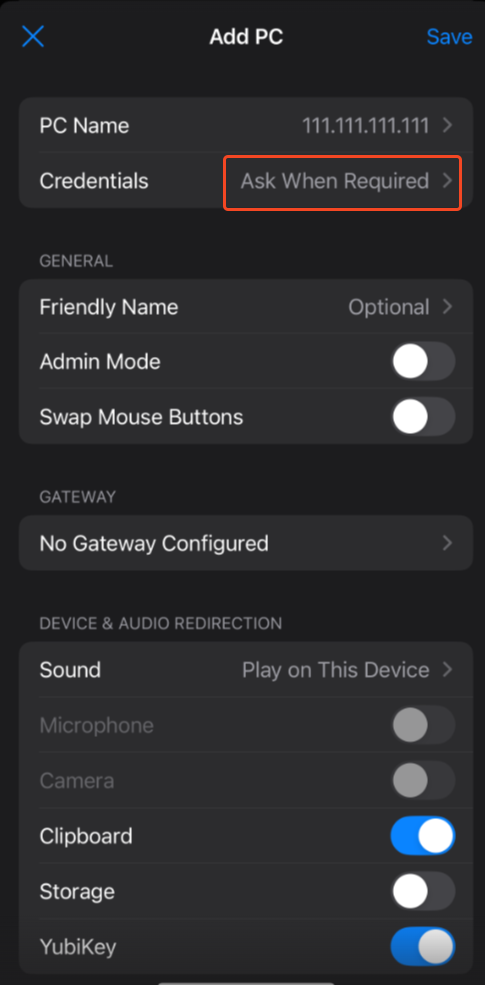
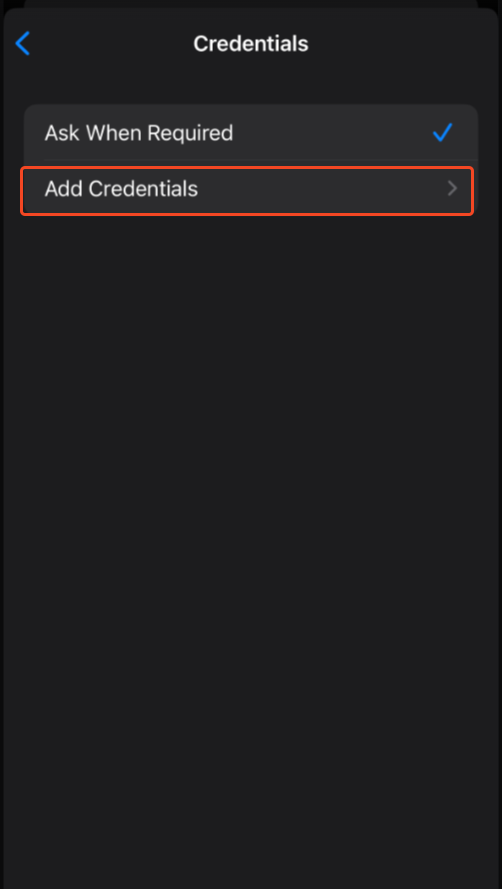
5Tap on Credentials then tap Add Credentials
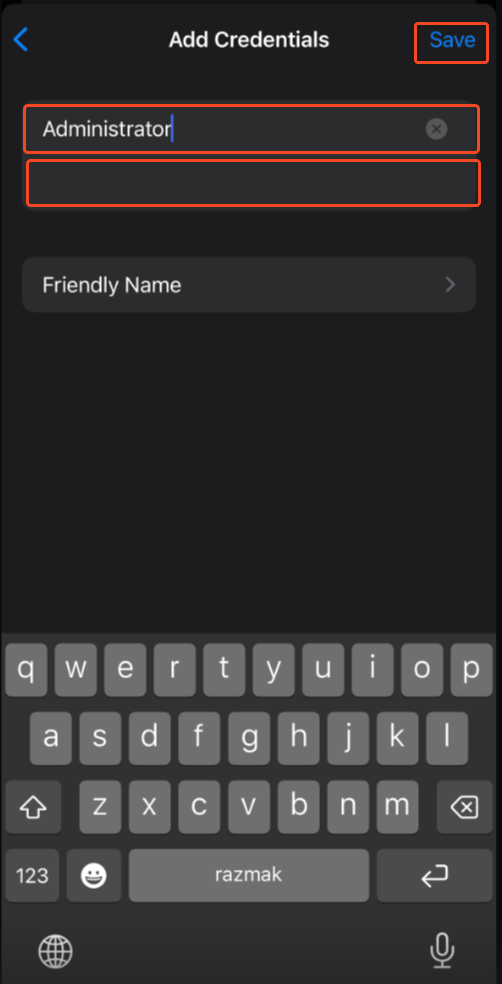
6Enter the Username (for example, Administrator) and Password we sent you via email into the first and second fields, respectively, and tap Save
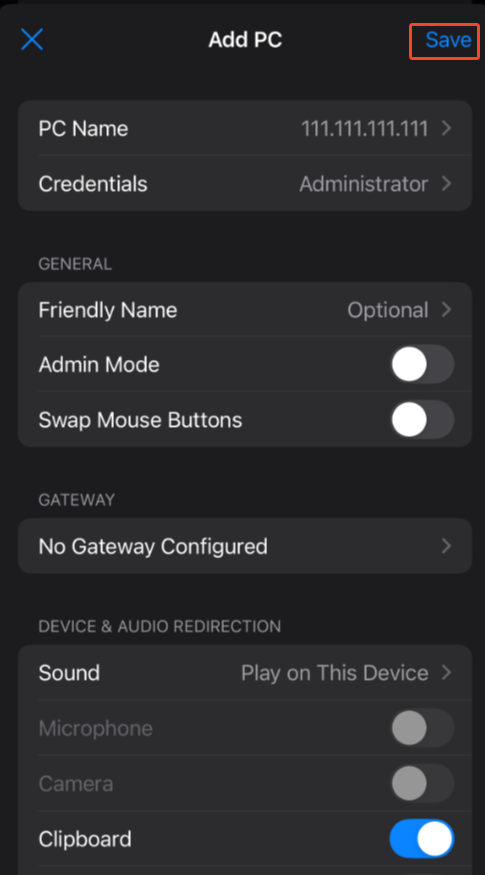
7Back on the main Add PC screen tap Save in the top-right corner.
8Your VPS or Server remote desktop profile is now ready – tap on it to connect