
This guide explains how to install MultiCharts and any required features
Alert
1Download MultiCharts Navigate to the MultiCharts Download Page and download the application.
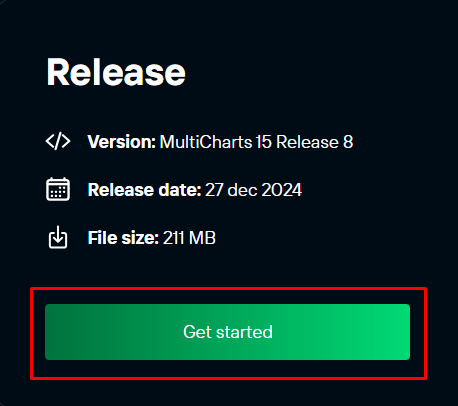
2Locate the Installation Wizard Once the download is complete, go to your Downloads folder to find the MultiCharts installation wizard.

3Run the Installation Wizard Double-click the installation wizard to begin the installation process.
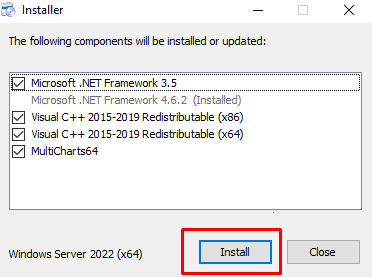
During the installation, you might notice that some features (e.g., .NET Framework 3.5) are missing. You’ll need to install .NET Framework 3.5 features manually. C++ components will be installed automatically.
Tip
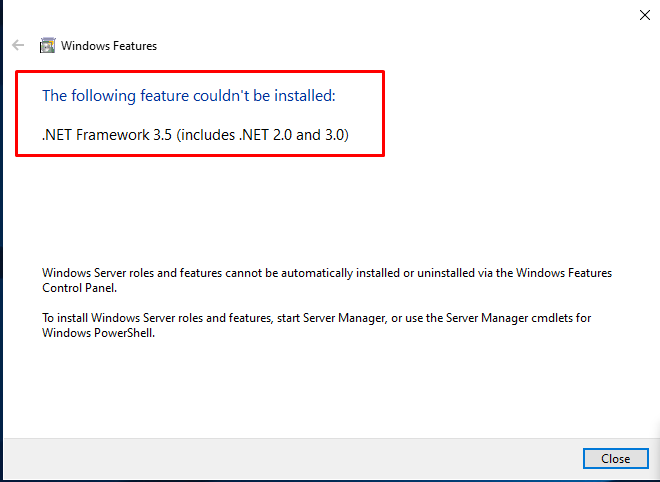
How to Install .NET Framework 3.5
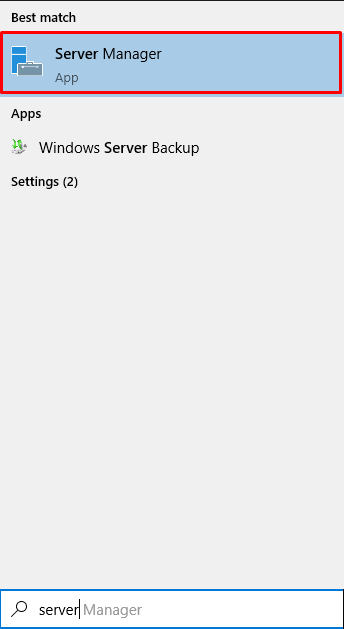
1Open Server Manager Launch Server Manager and wait approximately 10 seconds for it to load completely.
2Add Roles and Features Click on “Add Roles and Features”.
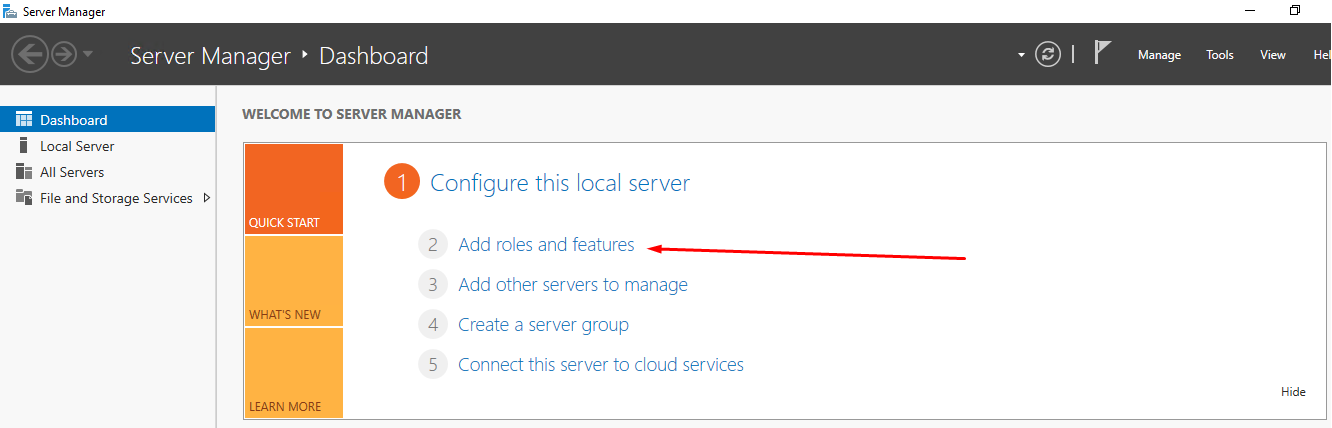
3Select Role-Based Installation Choose “Role-Based or Feature-Based Installation” and proceed.
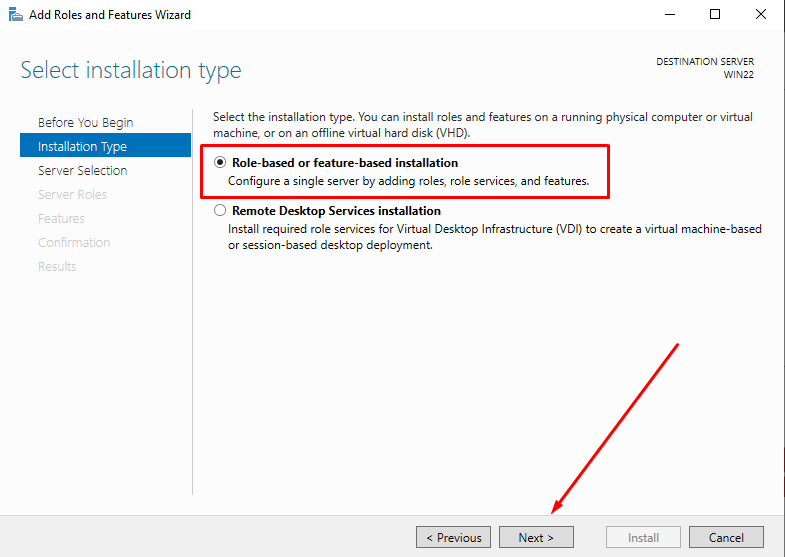
4Choose Your VPS Select your VPS from the list in the window and continue.
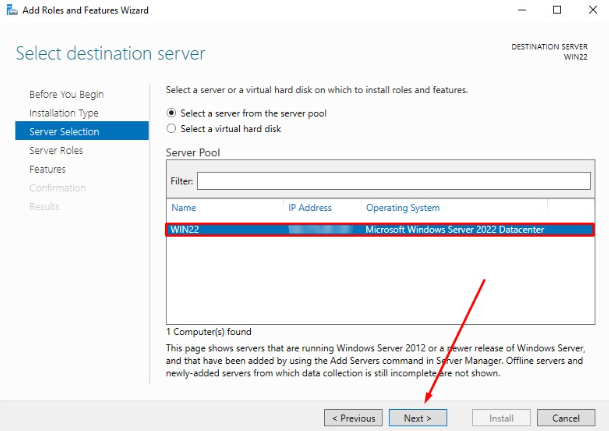
5Add .NET Framework 3.5 From the list of features, check the box for “.NET Framework 3.5 Features”.
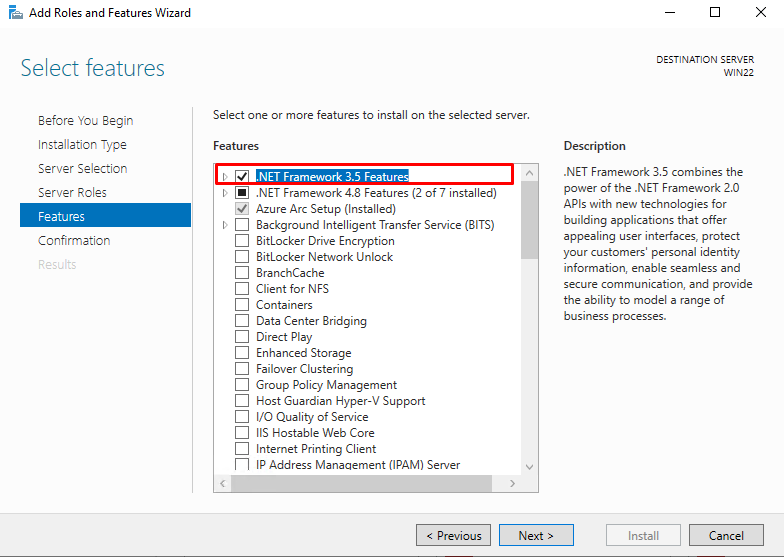
6Confirm and Install In the confirmation window, click “Install” and wait for the installation to complete.
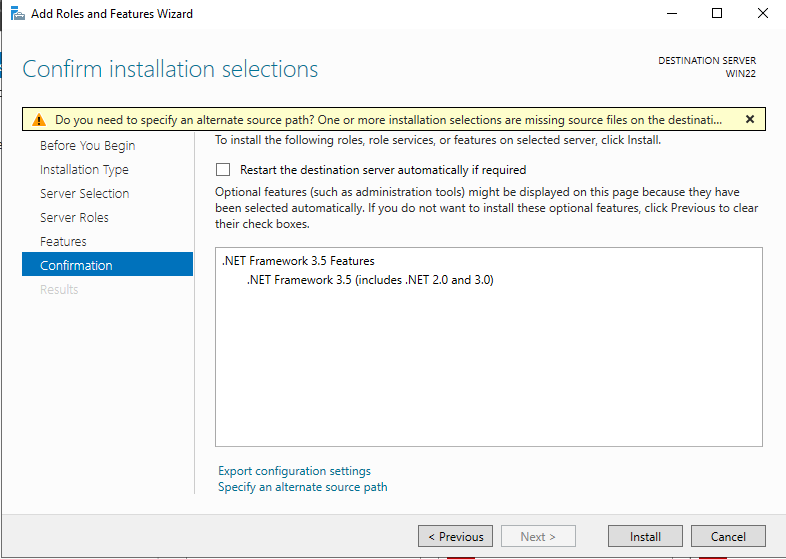
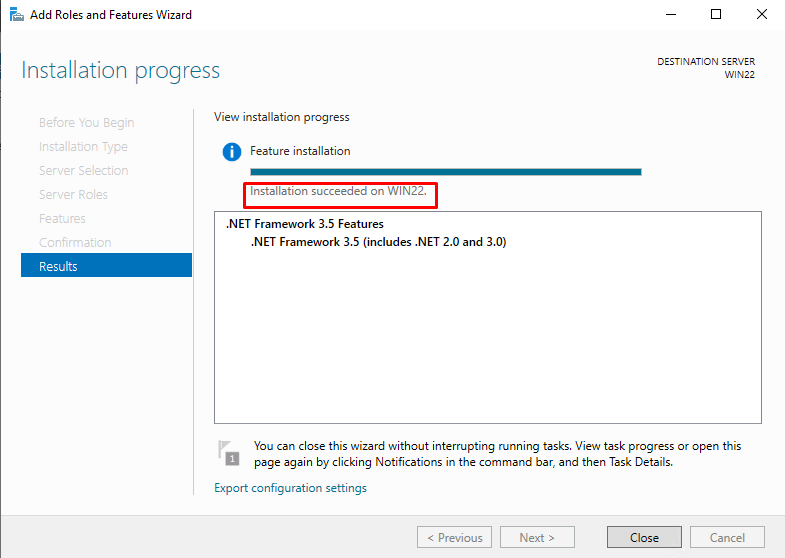
You have now installed .NET Framework 3.5 successfully. Return to the MultiCharts installer to complete the setup.
Success
Completing the MultiCharts Installation
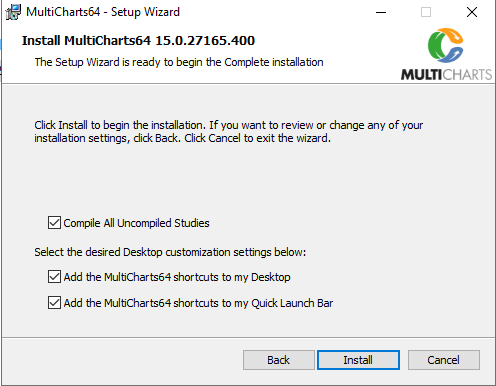
4Launch the Installation Wizard Again Open the installation wizard and press “Install” to proceed.
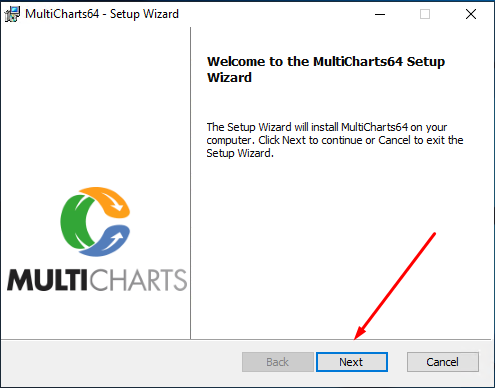
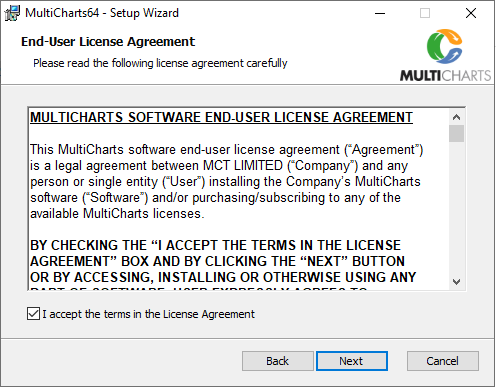
5Accept the Terms of the Agreement Read and accept the Terms of the Agreement to continue with the installation.
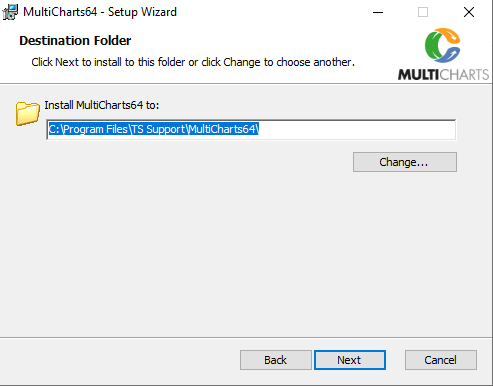
6Choose Installation Location Select the destination folder where you want to install the application. Make any necessary changes to the settings, then press “INSTALL” to begin the installation process.
 7Open the Generated File
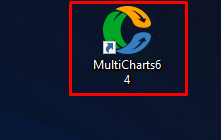
Once the installation is complete, locate and open the shortcut file generated on your desktop to launch MultiCharts.
7Open the Generated File
Once the installation is complete, locate and open the shortcut file generated on your desktop to launch MultiCharts.
You have successfully installed MultiCharts! If you encounter any issues, refer to the troubleshooting tips or contact our support team.
Success