Thee enterprise-grade cloud infrastructure for traders.

50% off first MonthAll Promos
Live ChatEmail1-800-555-1234Account
TradingView

How to Install TradingView on Windows Server 2022

To install TradingView on Windows Server 2022, log onto your ChartVPS server/VPS and follow these step-by-step instructions:

Tip

Step 1. Download TradingView:

  • Go to the TradingView website at https://www.tradingview.com/desktop/ and download the TradingView installation file.
  • Step 2. Download Microsoft.VCLibs.x64.14.00.Desktop.appx:

  • Download the Microsoft.VCLibs.x64.14.00.Desktop.appx file from https://aka.ms/Microsoft.VCLibs.x64.14.00.Desktop.appx.
  • Step 3. Locate the Downloaded Files:

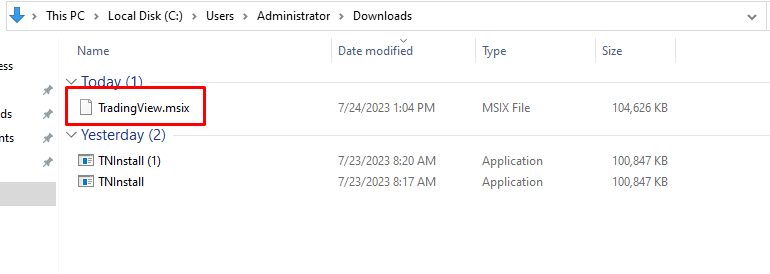
  • By default, the downloaded files should be located in your Downloads folder at C:\Users\Administrator\Downloads.
  • Step 4. Open PowerShell in Administrator Mode:

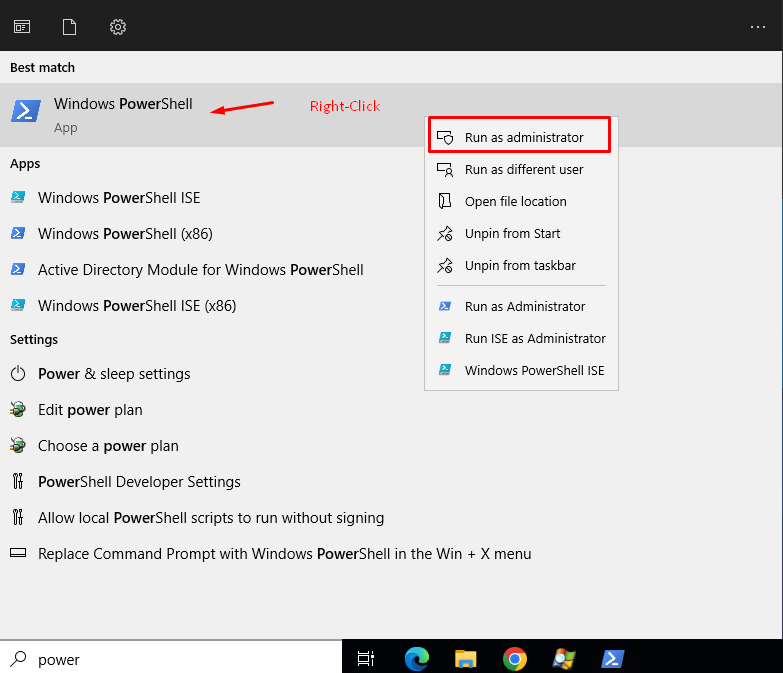
  • Right-click on the Start button and select Windows Terminal (Admin) to open PowerShell in administrator mode.
  • Step 5. Install Microsoft.VCLibs:

  • Copy the following command and paste it directly into the PowerShell window:
  • Add-AppxPackage -path C:\Users\Administrator\Downloads\Microsoft.VCLibs.x64.14.00.Desktop.appx

    Step 6. Install TradingView:

  • Next, copy the following command and paste it into the PowerShell window:
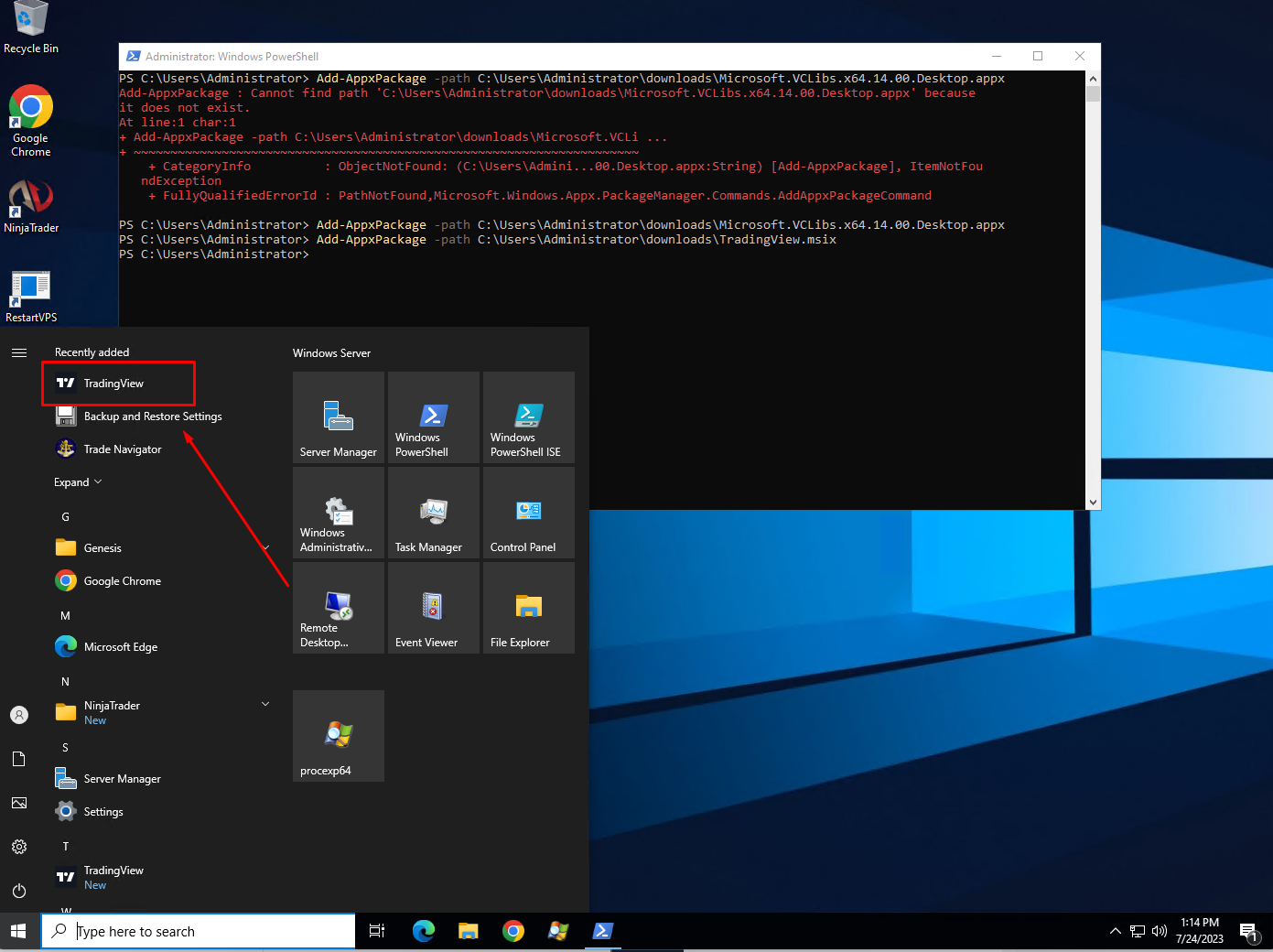
  • Add-AppxPackage -path C:\Users\Administrator\Downloads\TradingView.msix

    Step 7. Check Start Menu:

  • After the installation is complete, click the Start button, and you should find TradingView listed there.
  • Now, you should have TradingView successfully installed on your Windows Server 2022. You can launch it from the Start menu and start using the application for your trading needs. If you encounter any issues during the installation, please make sure that you have administrative privileges and that the paths to the downloaded files are accurate.

    Success

    How to Install TradingView on Windows Server 2022
    ← Back to Helpdesk