
For optimal security and performance, we recommend manually updating your Windows Server 2022 VPS and Dedicated Server at least once a month, even though automatic updates are turned off. Regular updates are essential for preventing problems with Windows services and, most importantly, for protecting your data with the latest security patches from Microsoft.
Note
This guide focuses on Windows Server 2022. For information on managing updates in Windows Server 2025 or Windows 11, please see this guide: Running Updates on Windows Server 2025 & Windows 11
How to Run Windows Updates
1In the Windows Search bar (usually in the bottom left corner), type Check for updates and select the matching result.
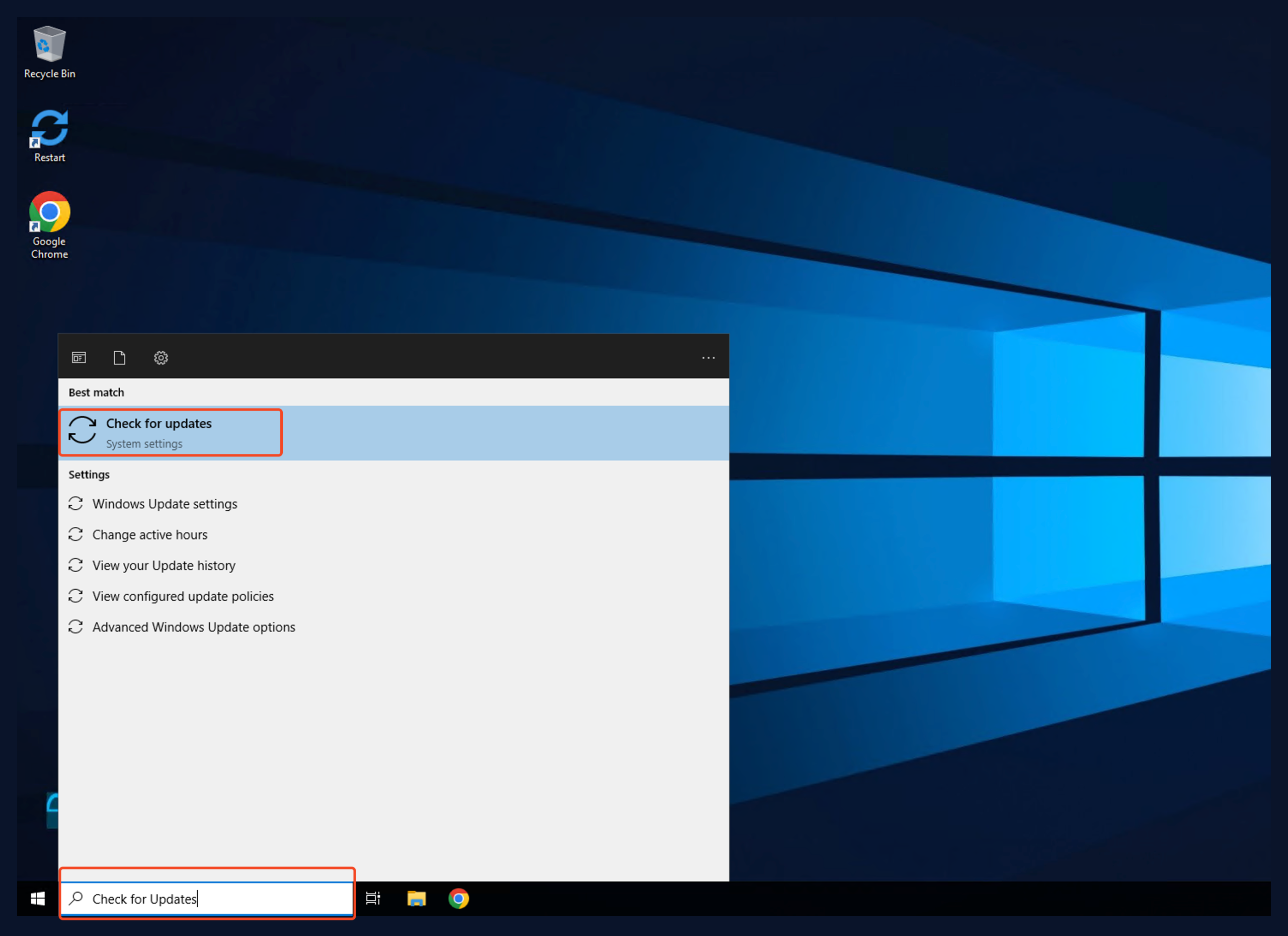
2Clicking on “Check for updates” in the search results will take you to the Windows Settings page, which manages updates. On the Windows Update section of the Settings page, click the “Check for updates” button to start the scan.
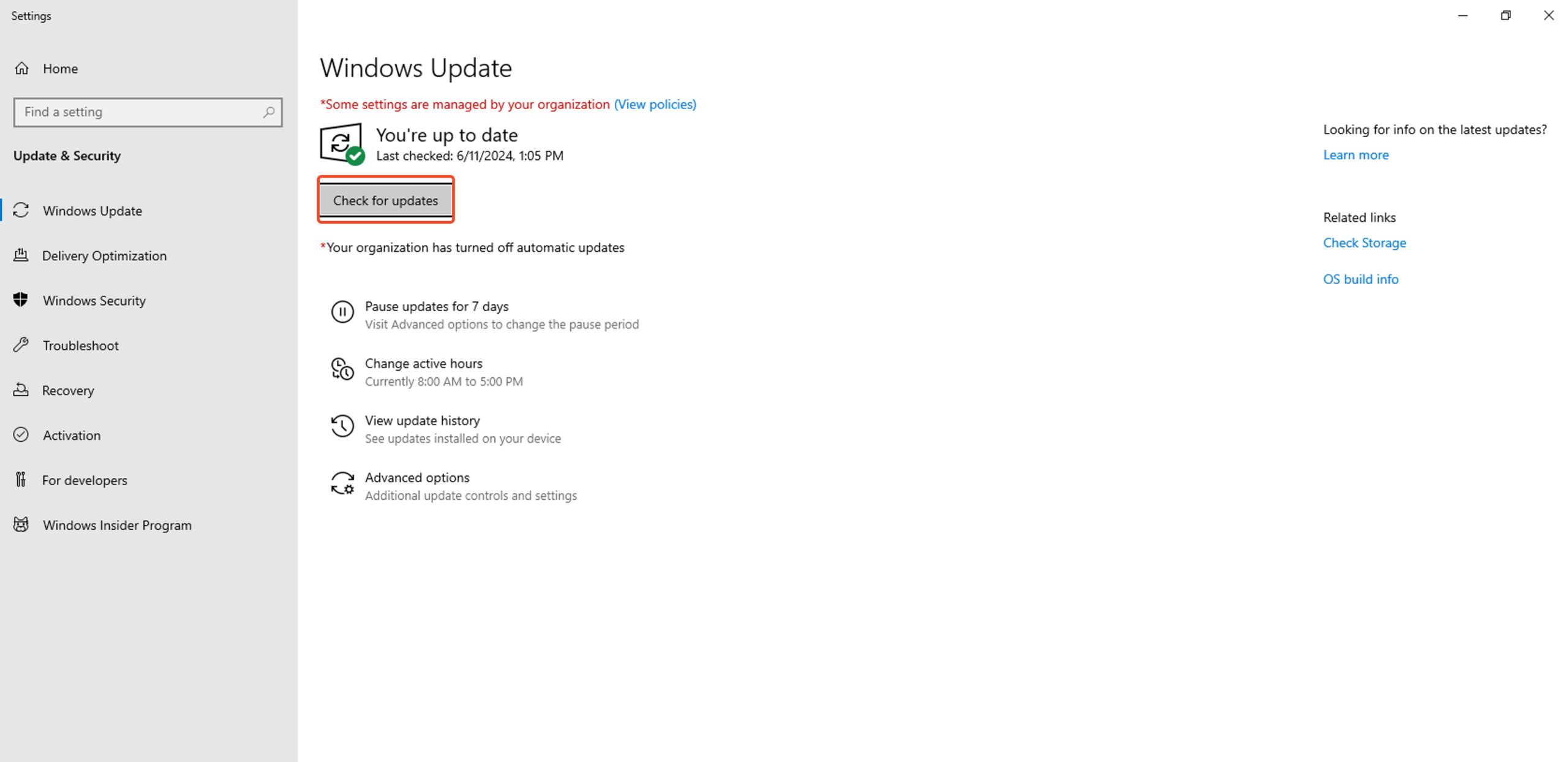
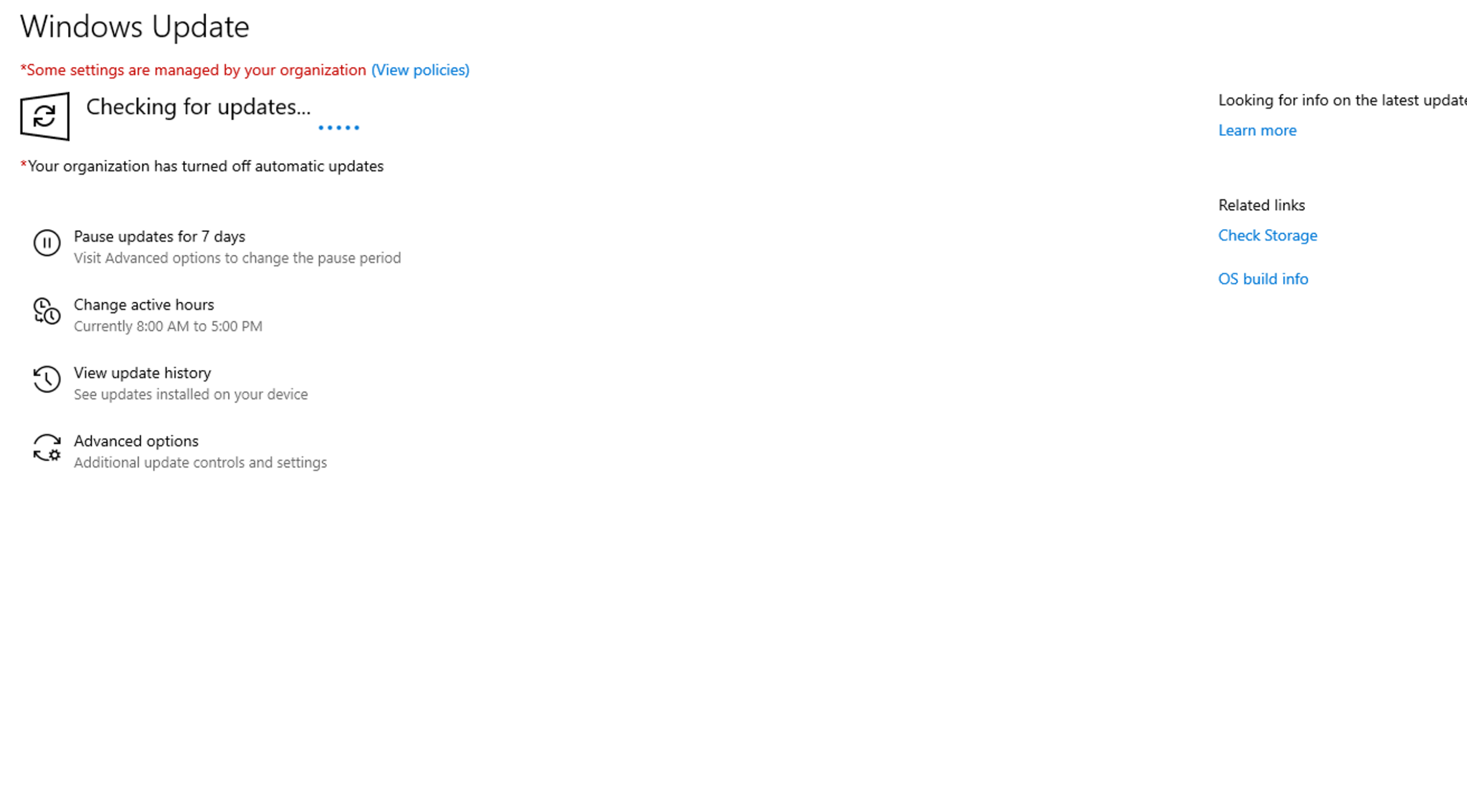
3If Windows finds updates, it will begin installing them. Otherwise, the Check for updates button will become available again.
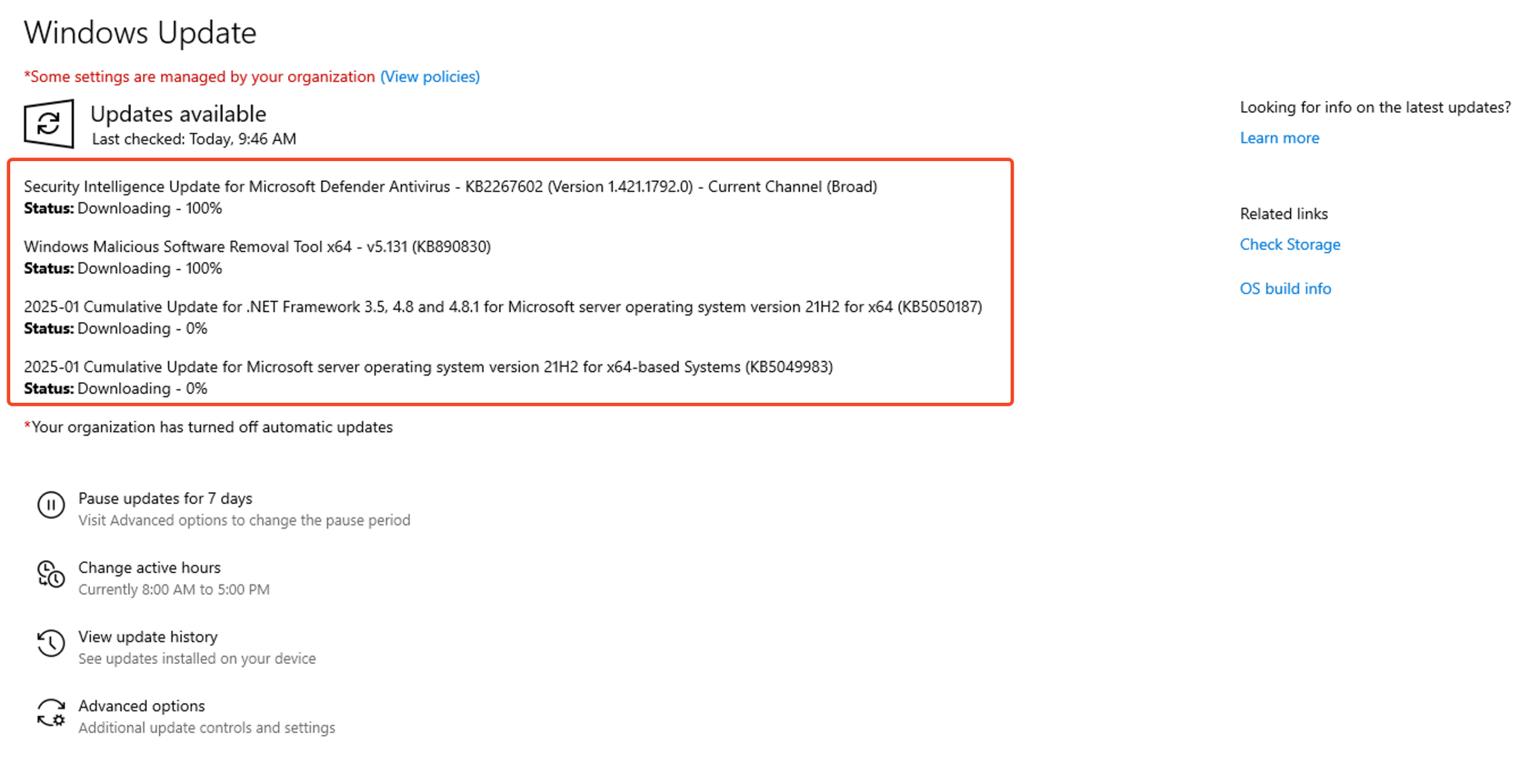
4Once the update process is complete, you may see a message asking you to restart your server. It’s important to restart if prompted, as some updates won’t be fully applied until you do.
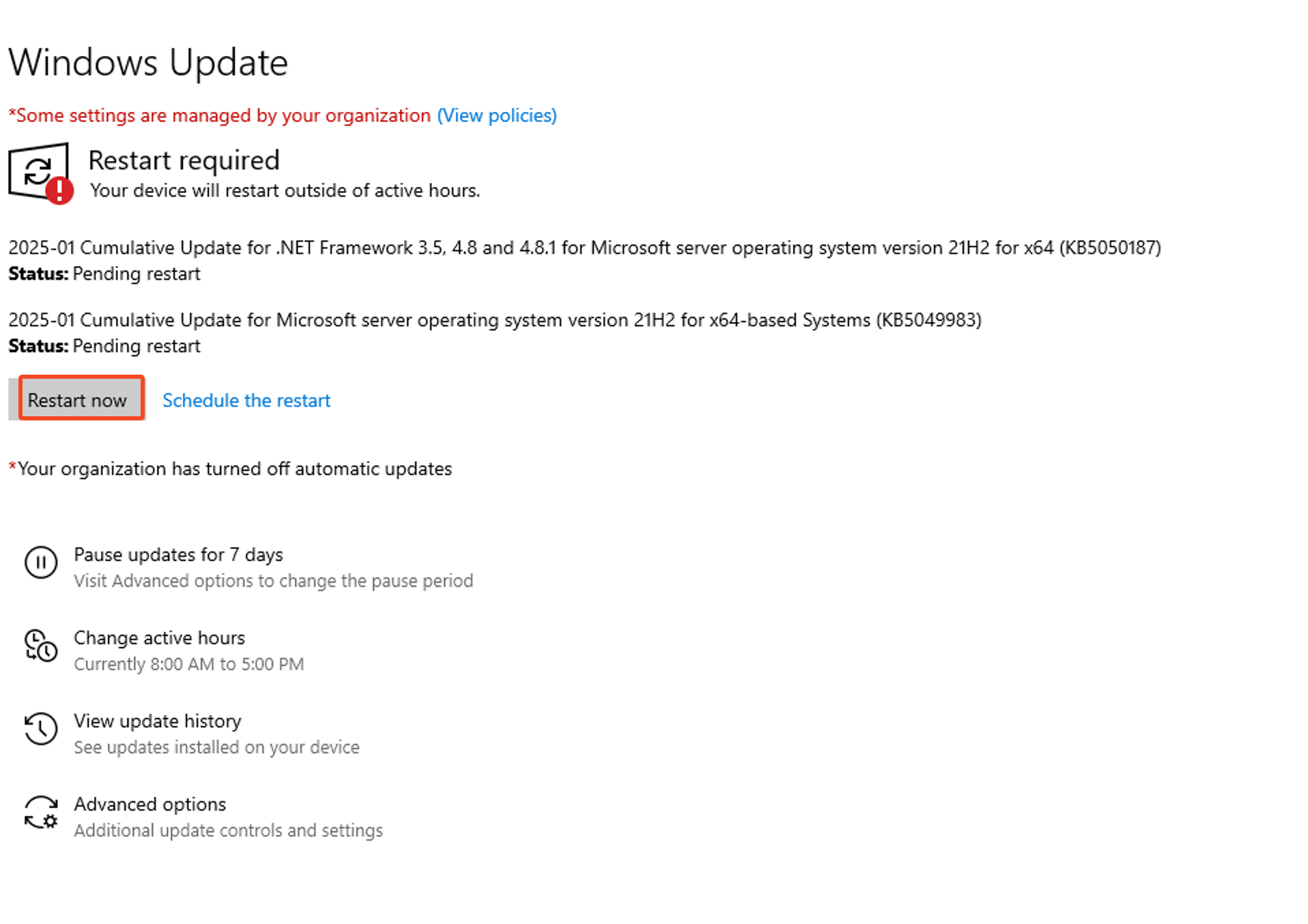
Not every update will require a reboot.
Success
Important: Before restarting your VPS/Dedicated Server, ensure all trading applications are closed. A reboot will terminate all running programs.
Warning
5After the updates are installed and the server reboots, your Windows Server 2022 VPS/Dedicated Server is up-to-date and ready for use.
After the updates are installed and the server reboots, your Windows Server 2022 VPS/Dedicated Server is up-to-date and ready for use.
Having trouble with these steps? Our support team is available 24/7 to assist you. Don’t hesitate to reach out!
Note