
Most traders use multiple monitors when trading. This doesn’t have to change since the Remote Desktop Connection app used by ChartVPS clients has full multi-monitor support – all it requires is a single tick of a box. Here’s where to find it:
Tip
1Start the Remote Desktop Connection app or Microsoft Remote Desktop app as outlined in the Connecting to your VPS or Server via Windows2Once the app is launched, click Show Options then Display3Tick Use all my monitors for the remote session
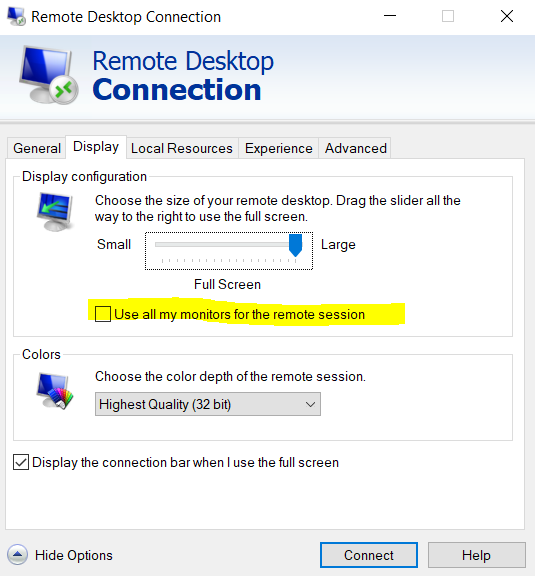
4Click Connect
Notes
The Remote Desktop Connection / Microsoft Remote Desktop apps support either a single or all monitors in full screen mode. For example, if you have 3 monitors, you cannot have the app running full screen across 2 monitors.
Tip
To spread the app across a select number of monitors, connect without _Use all my monitors for the remote session_ ticked, then move your mouse to the center-top of the screen and click on the window icon to run the app in windowed mode. Then click and hold the edges of the window to spread across as many screens as you’d like.
Tip
If you want to connect to your RDP session only using the particular monitors, please check this guide – How to select particular monitors to be involved in remote session?Tip