There are many ways to remote connect to your ChartVPS server/VPS, and you can do so from nearly any device, be it desktop, laptop, tablet, smartphone, or anything in-between. Our recommended, tried-and-tested, and free method is via Microsoft’s Remote Desktop app. It’s available for every major operating system, including Windows, Mac OS, iOS, and Android.
Tip
- Download the Microsoft Remote Desktop app from the Google Play Store
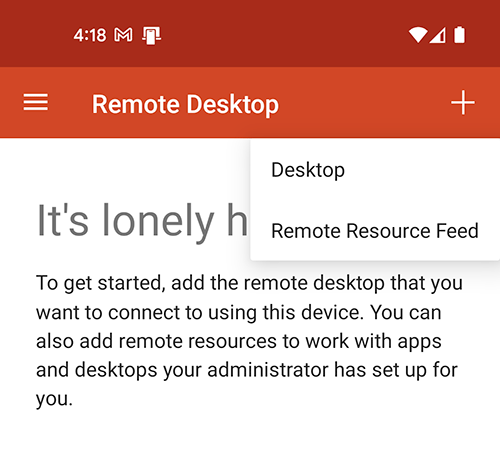
- Launch the app, then tap the “+” in the top-right corner and select Desktop
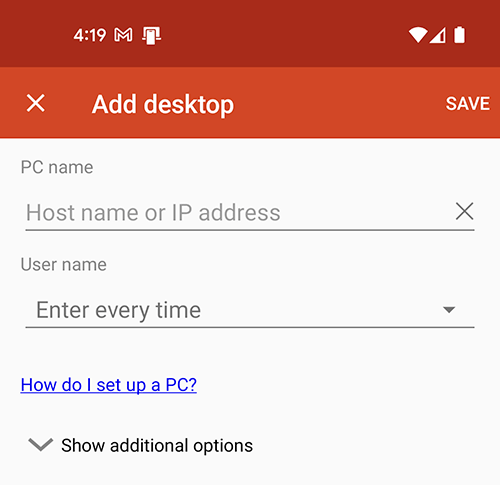
- Under PC name, enter the IP Address that was sent to you via email shortly after you signed up with ChartVPS
- Tap on the field under User name and select Add user account
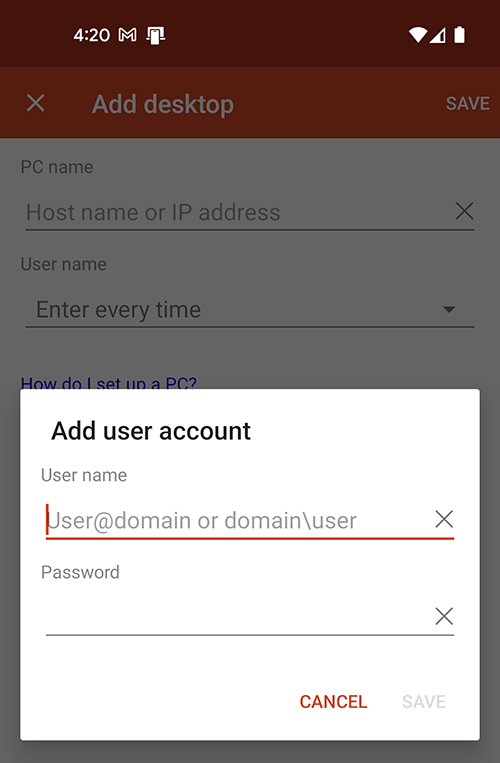
5Fill out the User name and Password sent to you and click Save
6Back on the Add desktop screen tap Save in the top-right corner.
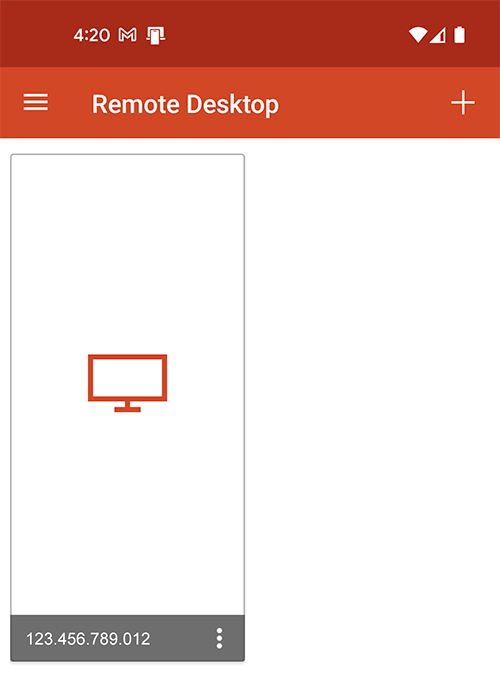
7Your VPS or Server remote desktop profile is now ready – tap on it to connect